

Reseller partner
Bring your own clients onto BlockWill on seat-based plans, invite users, run a service catalog, and use your own will templates.
A reseller brings their own clients onto BlockWill on seat-based plans and bills those clients directly.
Overview
The reseller Overview summarizes your book of business:
- Active Seats: clients you have added who are on an active plan.
- MRR Owed to BlockWill: your total monthly seat cost.
- Active Plans: how many plans you can assign.
- Total Seats: active plus revoked.
- New Seats Over Time: a 6-month trend of clients added.
Clients
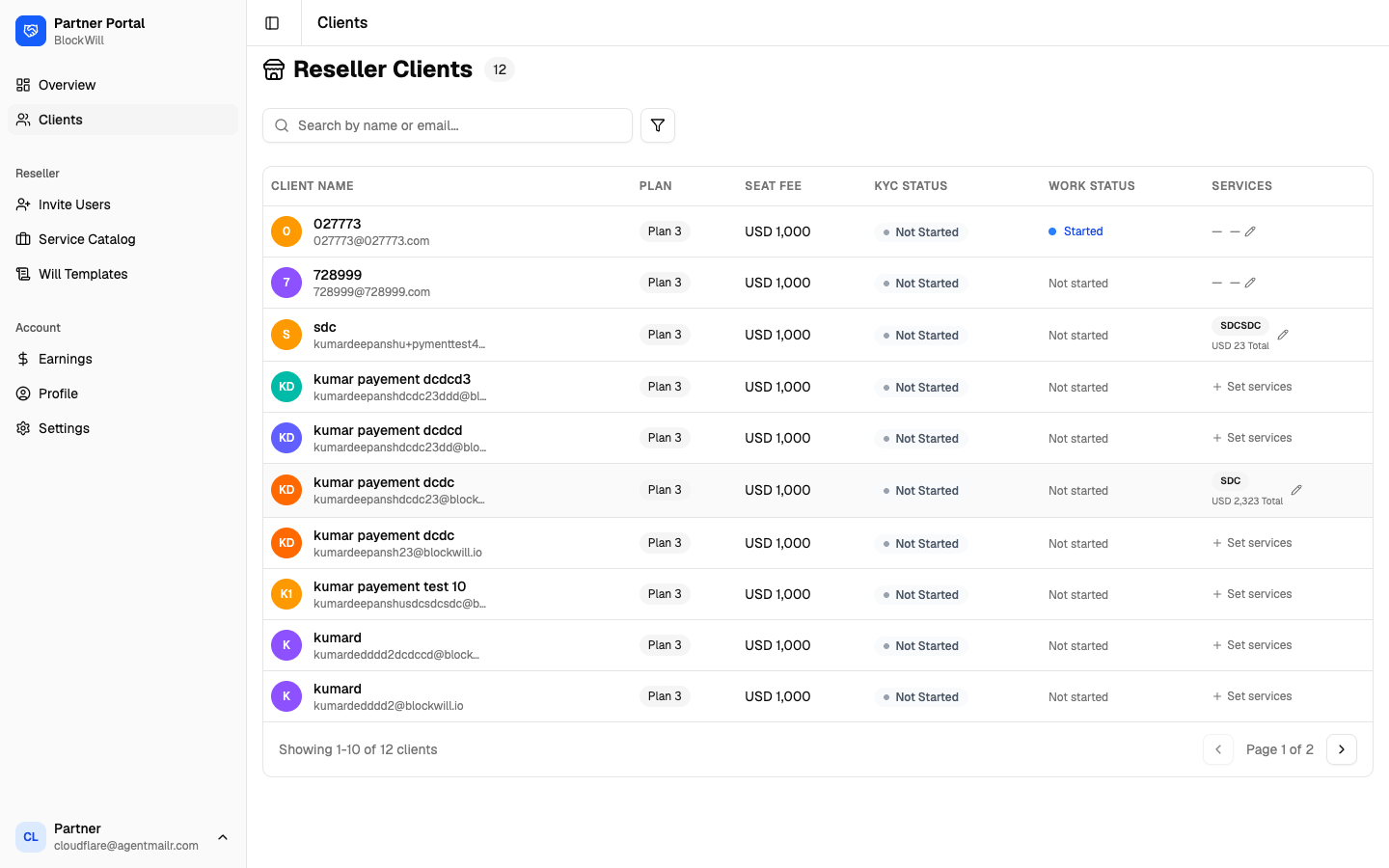
The Clients list shows every reseller client with their Plan, Seat Fee, KYC Status, Work Status, and any Services attached. Click any row to open the client.
Client detail
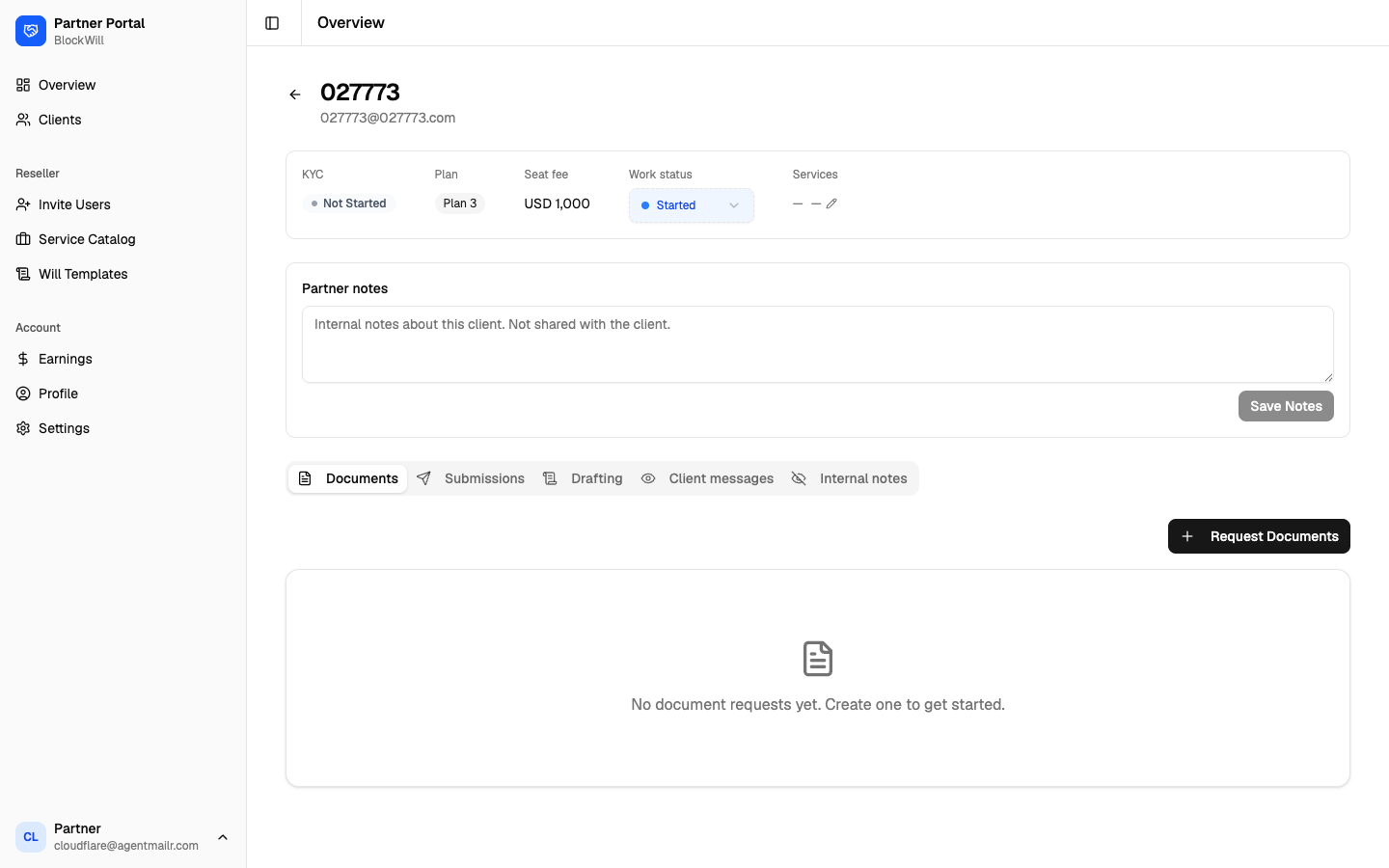
The client page shows KYC, plan, seat fee, and work status at the top, a Partner notes box (with Save Notes), and tabs for Documents, Submissions, Drafting, Client messages, and Internal notes. Use Request Documents to ask the client for files.
Invite Users
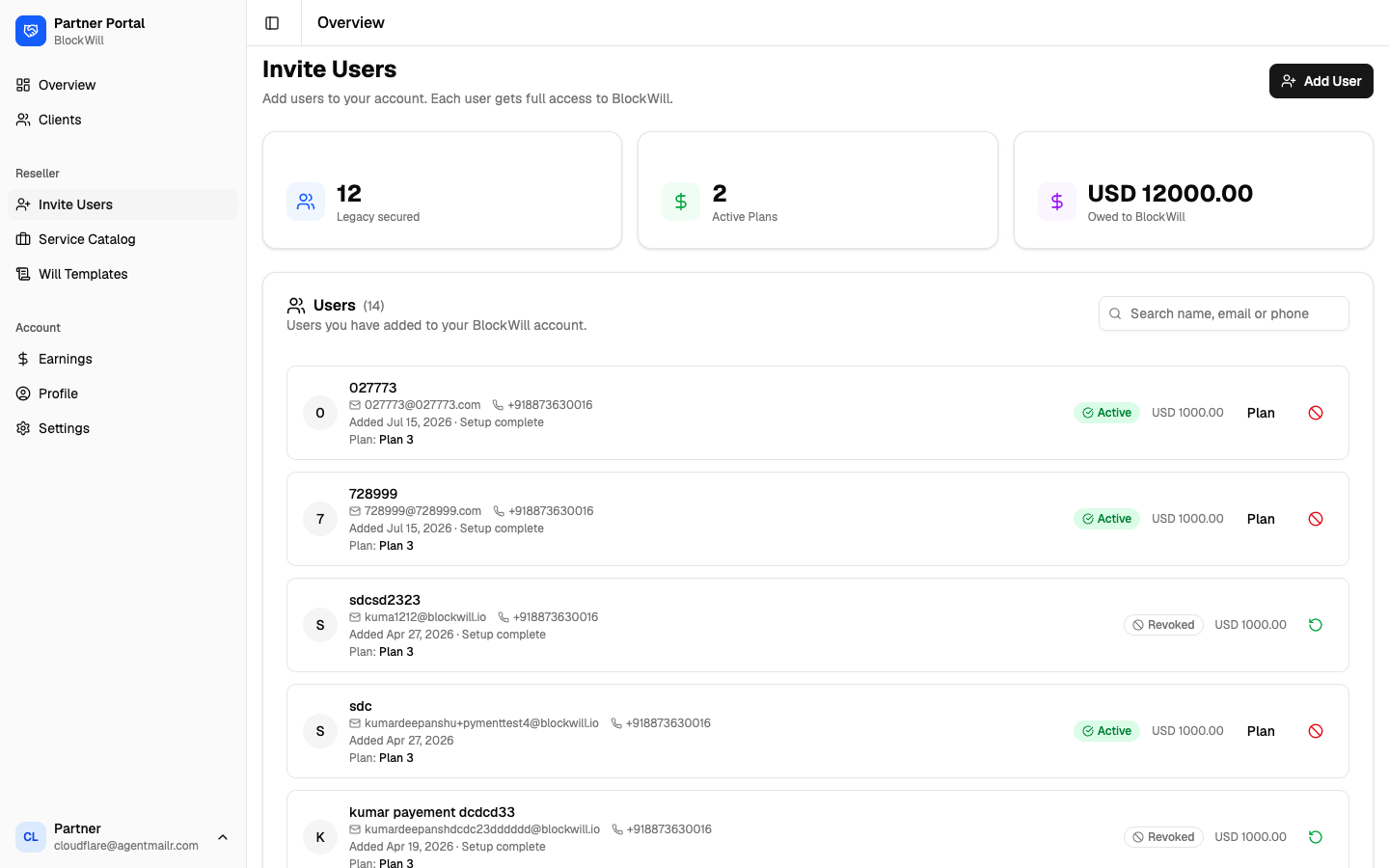
This is where a reseller adds clients. "Users" and "clients" are the same people here. Each added user gets a full BlockWill account under one of your plans.
The page shows totals (Legacy secured, Active Plans, Owed to BlockWill) and the list of users you have added, each with their plan, status (Active or Revoked), and seat fee.
To add a user
Click Add User (top right).
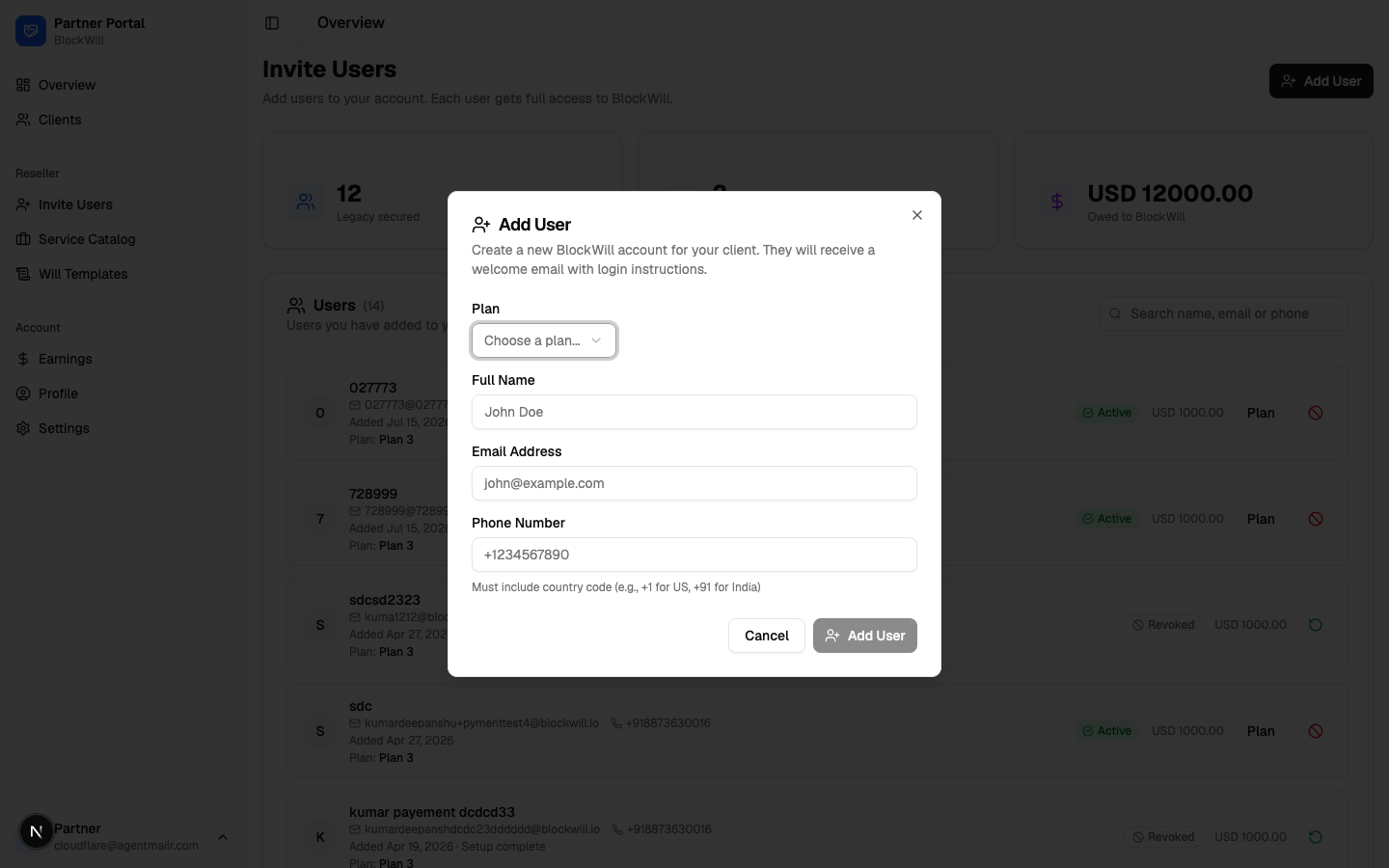
Choose a Plan.
Enter the client's Full Name, Email Address, and Phone Number (include the
country code, for example +91...).
Click Add User. BlockWill creates their account and emails them a welcome message with login instructions.
You can revoke or manage a user's plan from the row actions in the list.
Service Catalog
Define extra services you offer your own clients. Each has a flat fee you set and collect directly. BlockWill is not involved in the payment.
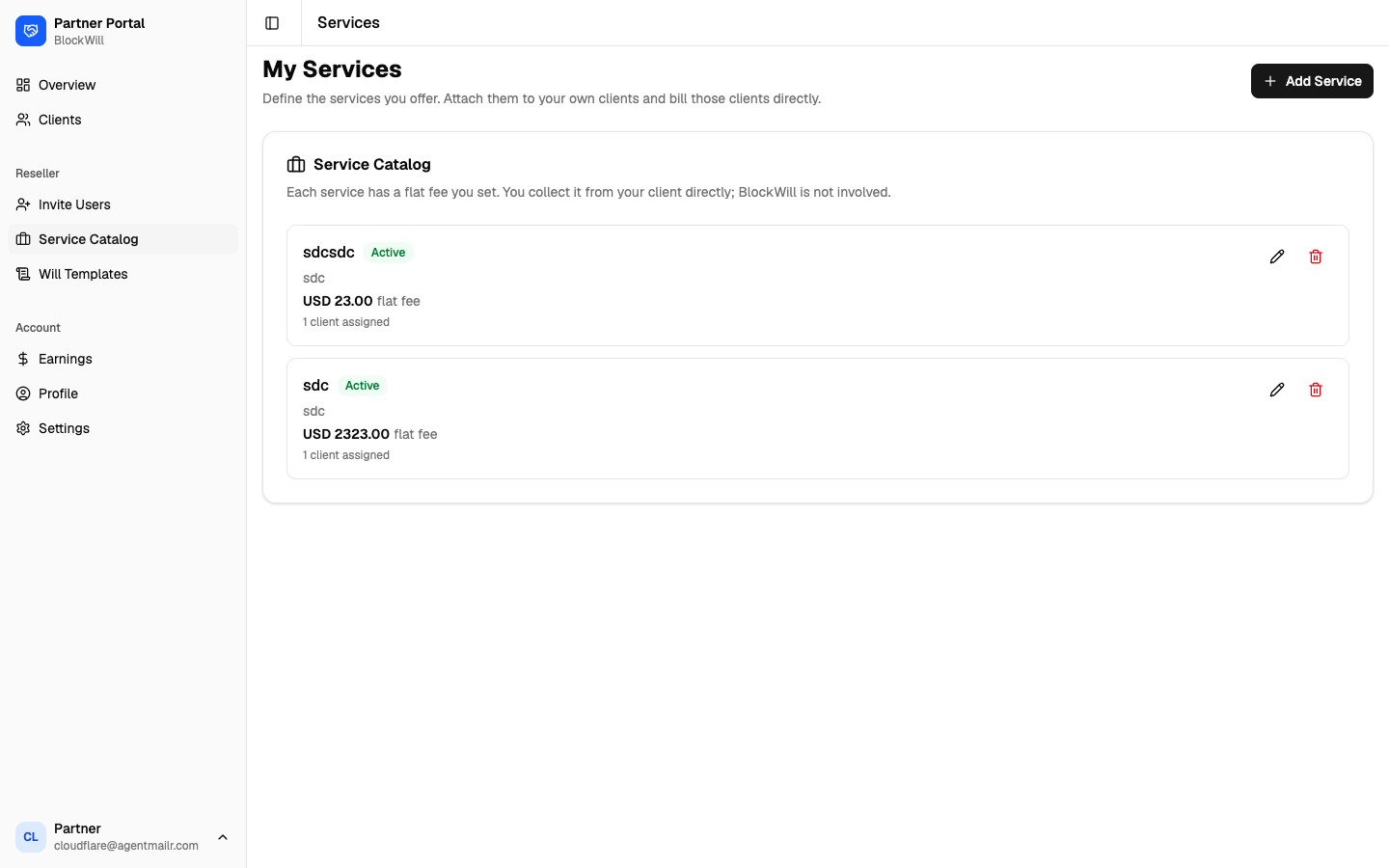
To add a service
Click Add Service.
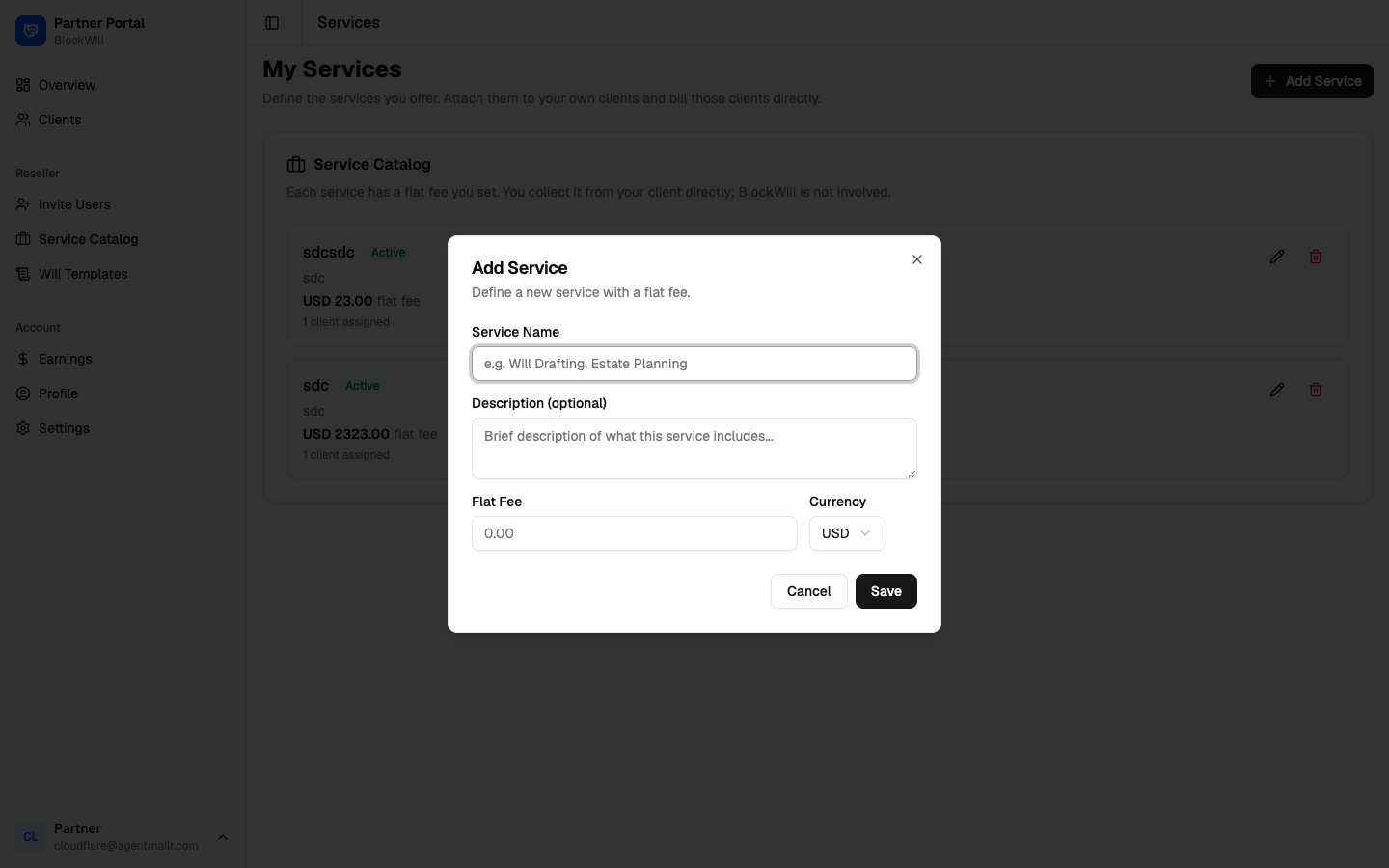
Enter a Service Name, an optional Description, the Flat Fee, and the Currency.
Click Save.
Edit or remove a service with the pencil or trash icons on each card.
Will Templates
Upload your own will document and BlockWill auto-maps its placeholders to your clients' data, so you can generate each client's will from your own template. BlockWill is never involved in the content.
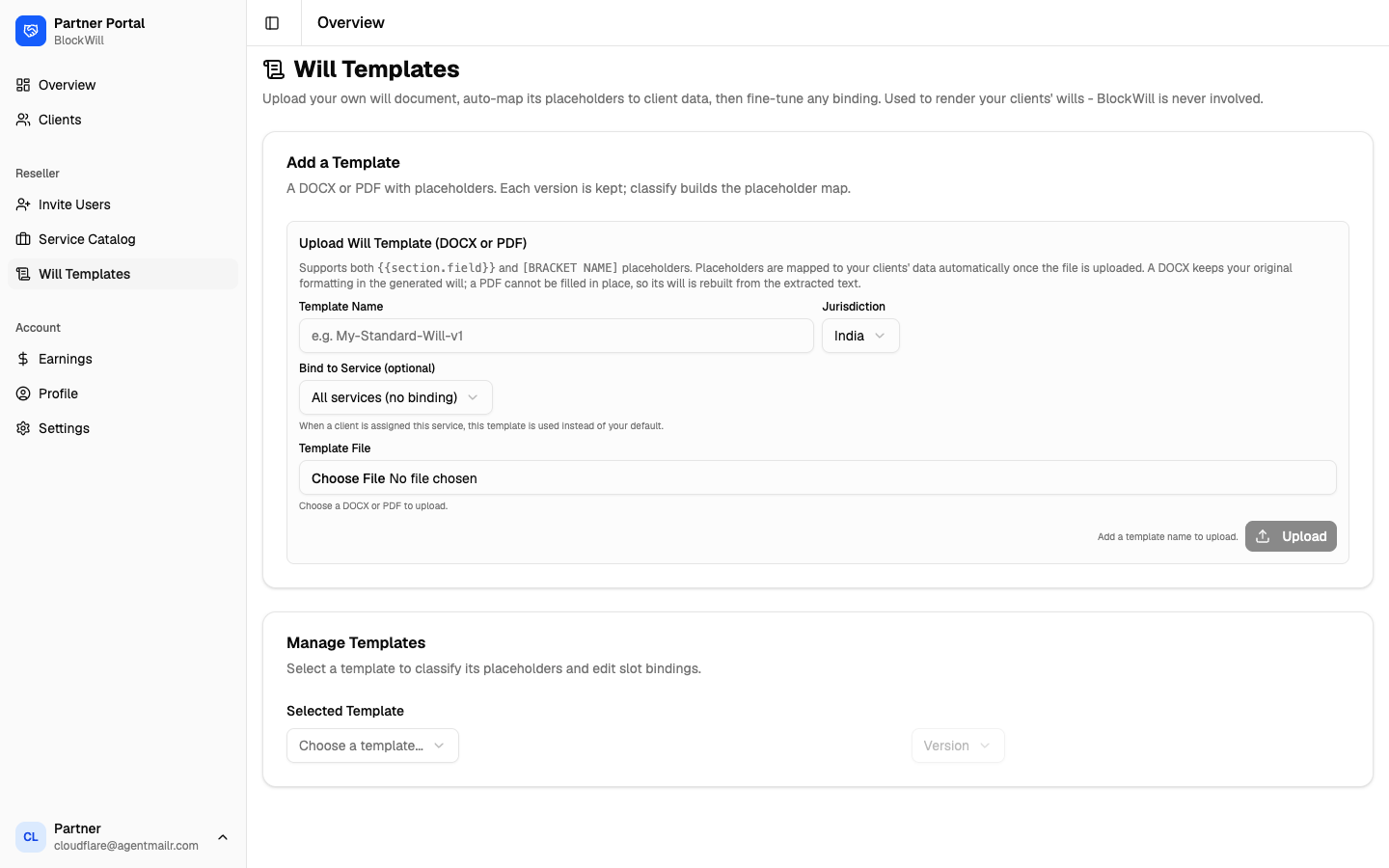
To add a template
Upload a DOCX or PDF with placeholders. Both {{section.field}} and [BRACKET NAME]
styles are supported.
Give it a Template Name and choose a Jurisdiction (for example India).
Optionally Bind to Service so this template is used whenever that service is assigned.
Click Upload.
Under Manage Templates you select a template to classify its placeholders and fine-tune each slot binding. A DOCX keeps your original formatting. A PDF is rebuilt from its extracted text.